The current lyric.
Right on CarPlay.
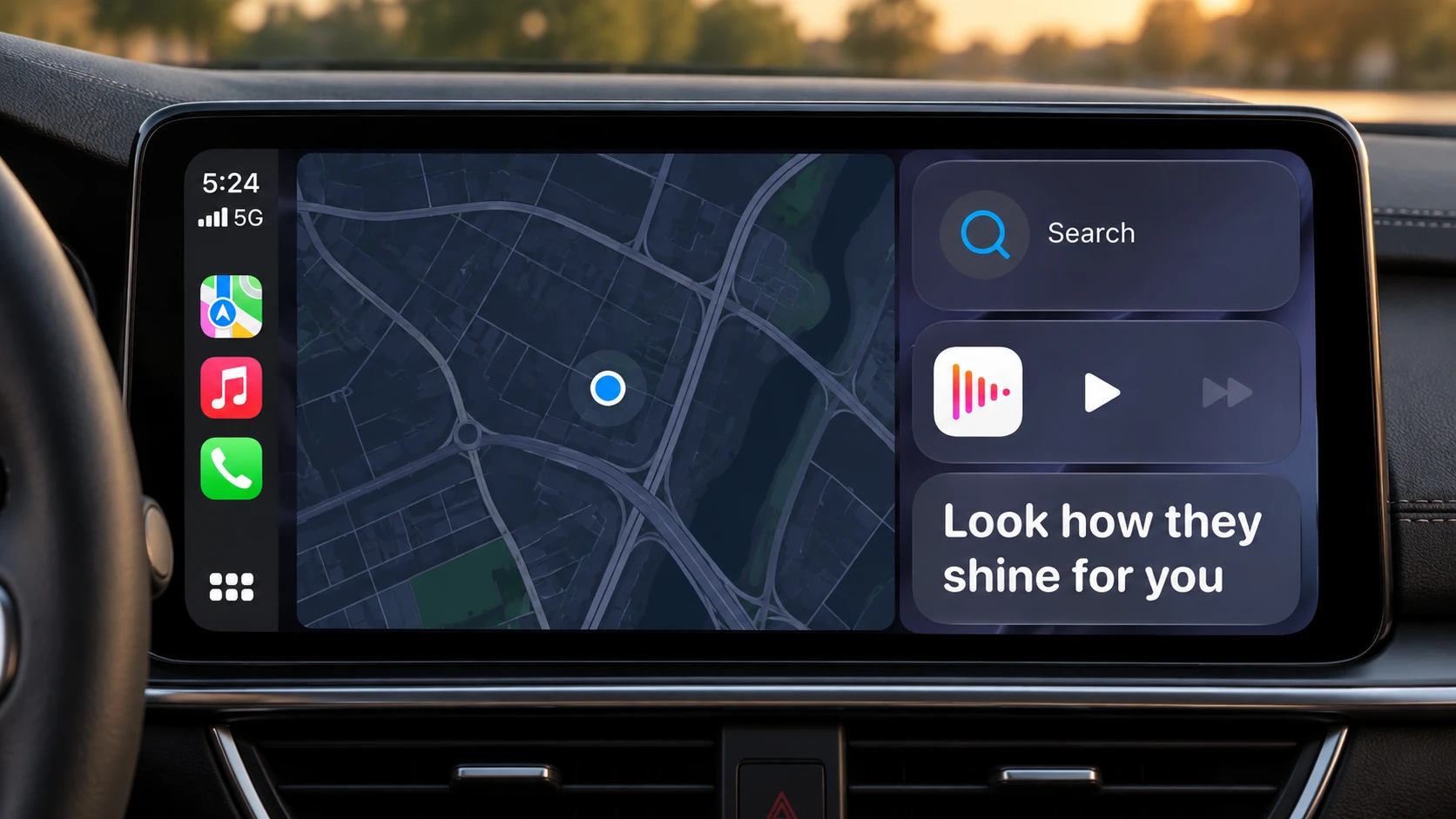
Start lyrics on your iPhone and read the current line beside your CarPlay map and music controls.
iPhone app requirediOS 26 or laterPassengers or parked
Set up before you set off
01
Connect your iPhone to CarPlay
Use your car’s usual wired or wireless CarPlay connection. Your iPhone needs iOS 26 or later, with Beyond Chorus installed.
02
Turn on Live Lyrics
In Beyond Chorus Settings, find Live Lyrics and choose Always. You can also choose CarPlay Only to limit it to a detected car-audio connection. Allow Live Activities for Beyond Chorus in iPhone Settings.
03
Start lyrics on your phone
Open Drive in Beyond Chorus and start recognition. Once the app recognises the song and finds lyrics, the current line appears on CarPlay Dashboard.
Set this up while parked. Beyond Chorus Drive is for passengers or a parked car; do not read or interact with lyrics while driving.
CarPlay or Tesla?
CarPlay
Connect your iPhone and start lyrics in the app. A small lyric card appears on CarPlay Dashboard.
Tesla
Open car-lyric.com in the Tesla browser and pair your iPhone to see lyrics on the touchscreen.
Tesla setupCarPlay, explained
- Where do the lyrics appear?
- In a small Live Activity card on CarPlay Dashboard, beside the map and music controls. Its size and position depend on your car display and settings.
- Do I need a separate CarPlay app icon?
- No. Start lyrics in the iPhone app. The lyric card appears on CarPlay Dashboard without a separate app icon.
- What if the lyric card does not appear?
- First check that lyrics are showing in Beyond Chorus on your phone. Set Live Lyrics to Always, allow Live Activities in iPhone Settings, and check the Live Activities settings in CarPlay. Reconnect CarPlay if needed. A car-audio route that is not detected can prevent CarPlay Only from starting the activity.
- Does this work in a Tesla?
- Use the Tesla browser setup for a Tesla touchscreen. The CarPlay Live Activity and Tesla browser are separate ways to display lyrics, both powered by the iPhone app.
- Can I use it without my iPhone?
- No. The iPhone runs Beyond Chorus, recognizes the track, and updates the lyric Live Activity. Keep the phone connected to CarPlay.
More on the system controls: Apple’s guide to Live Activities in CarPlay.